Setup push notifications in your flutter app with ApparenceKit
You must first have a firebase project and setup your apparencekit project. If you haven't done it yet, please follow the setup guide.
Introduction
We use the firebase_messaging plugin to handle push notifications. It allows us to send notifications on Android and iOS devices. If you intend to use notifications on Android you don't have many options and you must use firebase.
How it works
- When the app starts, we ask for the user permission to send notifications
- If the user accepts, we register the device token in our backend
- We initialize the firebase messaging plugin
- We Initialize the flutter local notifications plugin
- We listen to the firebase token refresh event. When it happens, we update the device token in our backend
- When we receive a notification, we show it to the user. If the app is in the foreground, we show a the notification using the flutter local notification plugin. If the app is in the background, firebase will automatically show it.
- If user opened app from a notification, we wait the app to be ready and we handle the notification action.
If the use log out, we unregister the device token from our backend.
Here is a complete article on how it works
Setup
Plugins
Notifications relies on those two packages
🤖 Android setup
Congratulation, android setup is automatically done for you by ApparenceKit.
🍏 iOS setup
Setup push notifications with firebase
Firebase will need to authenticate with your Apple account. So you need to create a key to allow firebase to send notifications to your app.
1 - Go to the Apple Developer Member Center and sign in with your credentials.
2 - In the "Certificates, Identifiers & Profiles" click on 'Keys' .
3 - Click on the '+' button to create a new key.
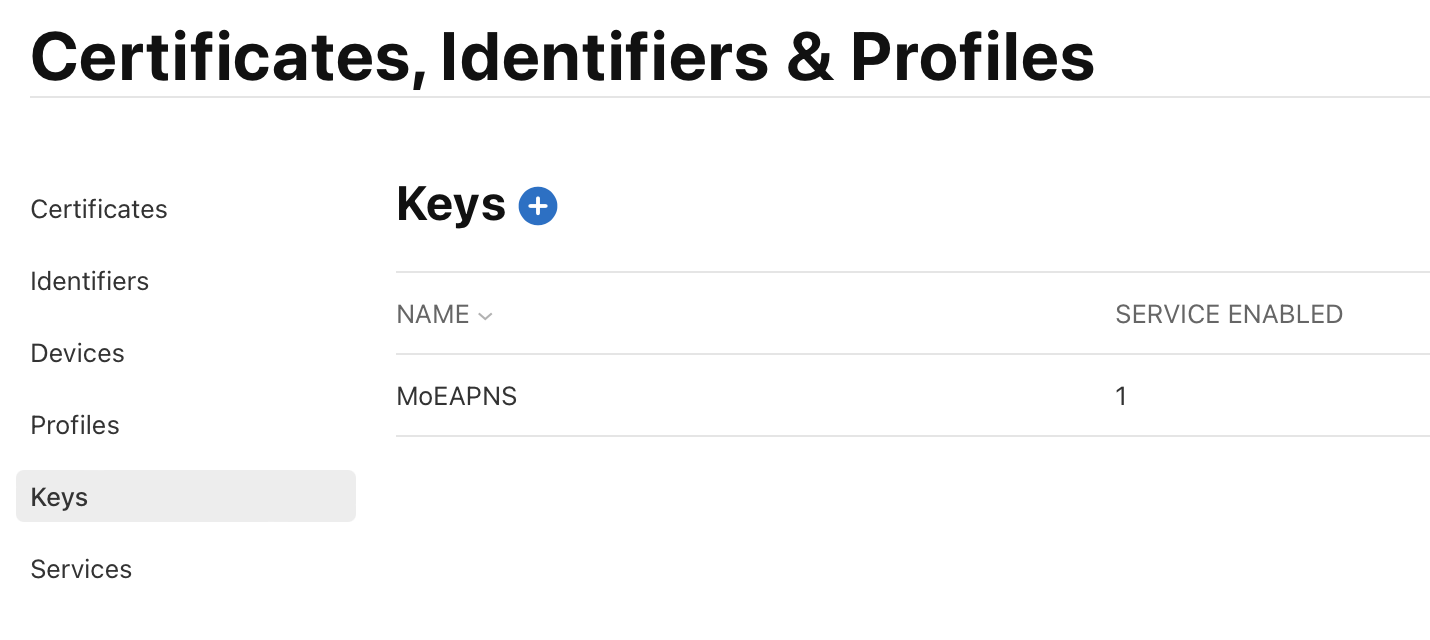 4 - Enter the key name and check the Apple Push Notifications Service (APNS)
5 - click on register
 7 - then download it
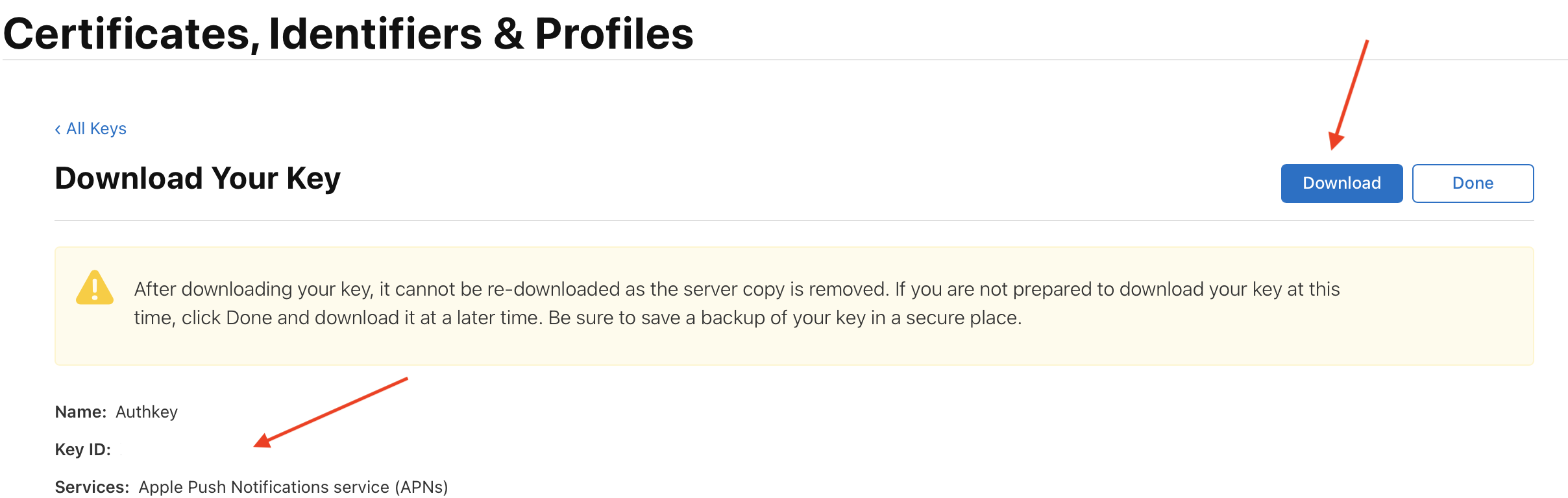
Note that you can’t have more than two keys and you can download it only once. So keep this file in a safe place. You will be able to use it for all your apps.
Upload the key to firebase
You can now upload this file to firebase.
1 - Go to your firebase project and click on the gear icon next to your project name.
2 - Click on project settings
3 - Click on the cloud messaging tab
4 - Click on upload your APNs authentication key
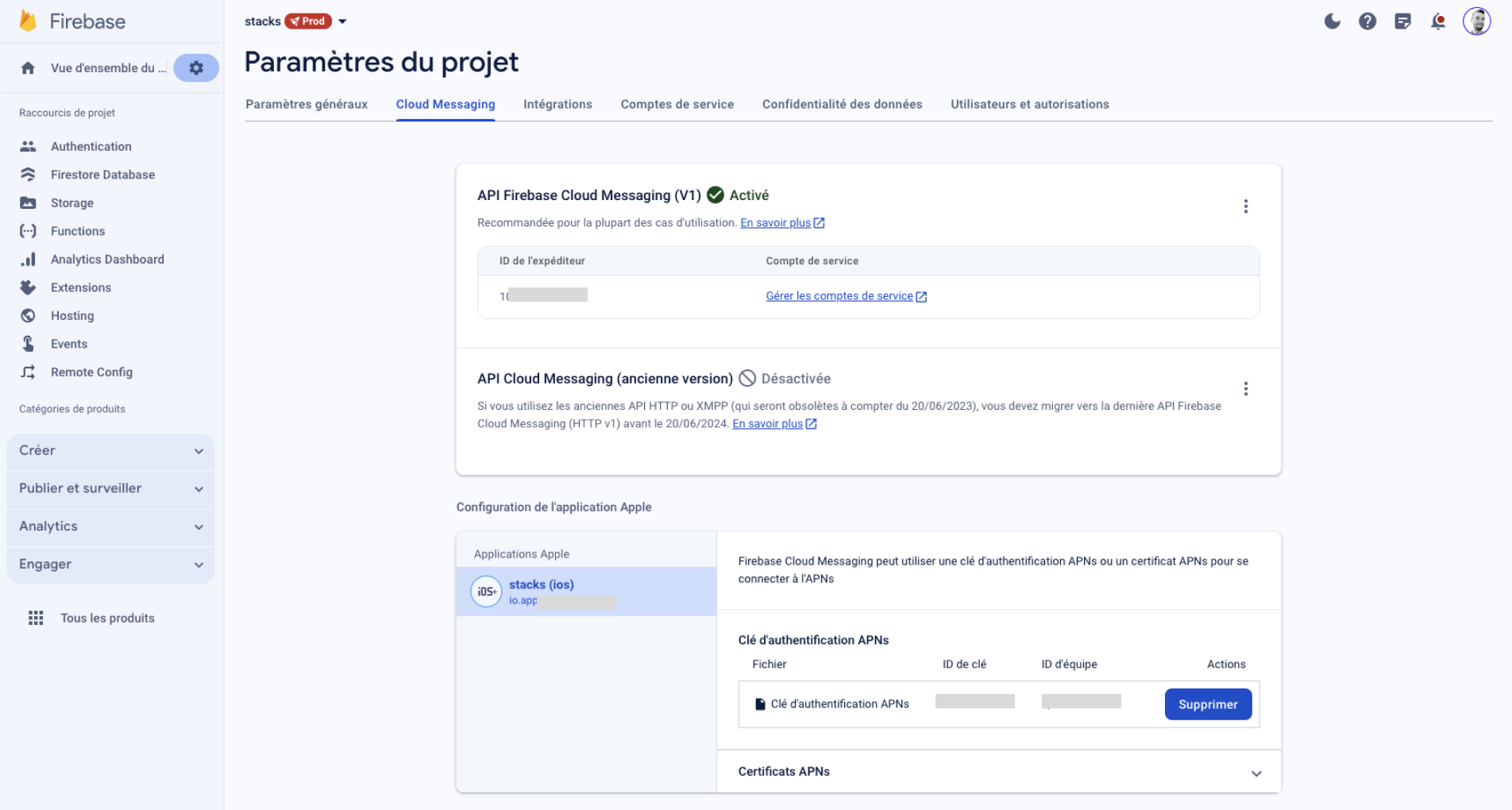 5 - Select the file you just downloaded and click on upload
6 - Put your key id and your team id.